If you are searching for 9.7.4 Leash CodeHS answers, you are probably working on a programming exercise that asks you to connect a moving ball to a line. The goal is to make the ball follow the mouse pointer while the line stretches from the center of the screen to the ball. Although the task looks simple, it teaches several important programming concepts, including JavaScript functions, graphics objects, coordinates, variables, and mouse events.
This guide explains the Leash exercise in simple English, with a practical code example, a breakdown of the important statements, common errors, debugging tips, and frequently asked questions. Whether you are a beginner in the United States, India, or anywhere else, understanding how the program works can help you complete the exercise more confidently.
The most important idea is that the ball and the moving endpoint of the line must use the same mouse coordinates. When these coordinates match, the two objects remain connected as the pointer moves around the canvas.
What Is the 9.7.4 Leash CodeHS Exercise?
The 9.7.4 Leash exercise is a graphics programming task that focuses on mouse interaction. Instead of displaying a picture that stays in one place, the program responds to the user’s actions.
The exercise typically involves two graphical objects:
- The ball: A circle that represents an object being pulled around the screen.
- The leash: A line connecting the ball to a fixed point in the middle of the canvas.
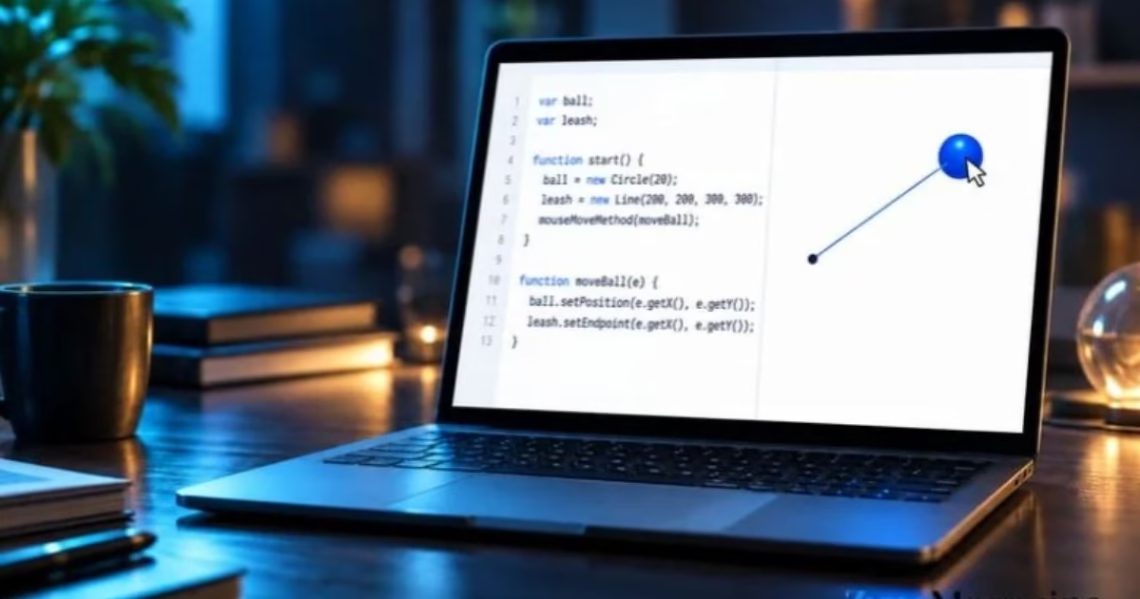
When the program starts, the ball and the line begin at the center of the graphics canvas. As the user moves the mouse, the ball follows the pointer, and the line’s endpoint moves to the same location.
The other endpoint of the line remains fixed in the center. This creates the appearance of a ball attached to a leash.
The assignment is useful because it introduces event-driven programming. Rather than writing separate instructions for every possible mouse position, you create a function that responds to mouse movement automatically.
The exact lesson numbering and starter code can vary between course versions. Always compare your implementation with the instructions shown in your own assignment.
What Does the Leash Program Need to Do?
Before writing code, it helps to understand the expected behavior.
A correct implementation should meet these basic requirements.
- Create a ball. The program needs a circle that represents the ball. Its size and appearance should match the assignment requirements.
- Create a line. The line represents the leash and connects the center of the canvas to the ball.
- Set the initial positions. Both the ball and the line’s endpoints begin at the center of the canvas.
- Detect mouse movement. The program must register a mouse movement handler so it can respond when the pointer moves.
- Move the ball. The circle should follow the current mouse position.
- Update the line endpoint. The moving endpoint should use the same X and Y coordinates as the ball’s center.
- Keep the other endpoint fixed. The line should remain attached to the original center point rather than moving freely across the canvas.
These requirements describe the central logic of the exercise. Once you understand them, the JavaScript code becomes easier to follow.
9.7.4 Leash CodeHS Answers: JavaScript Solution
The following example demonstrates the standard approach for a CodeHS JavaScript Graphics environment. It uses a circle for the ball, a line for the leash, and a single mouse event handler to update both objects.
var BALL_RADIUS = 30;
var ball;
var line;
function start() {
var centerX = getWidth() / 2;
var centerY = getHeight() / 2;
ball = new Circle(BALL_RADIUS);
ball.setPosition(centerX, centerY);
ball.setColor(Color.yellow);
add(ball);
line = new Line(centerX, centerY, centerX, centerY);
add(line);
mouseMoveMethod(leash);
}
function leash(e) {
var mouseX = e.getX();
var mouseY = e.getY();
ball.setPosition(mouseX, mouseY);
line.setEndpoint(mouseX, mouseY);
}
Important: This is an illustrative implementation, not a verified copy of every course version’s official solution. Check the required color, object order, and starter-code conventions in your assignment. If your teacher provides starter code or specific instructions, preserve those requirements.
The code demonstrates the two essential operations:
ball.setPosition(mouseX, mouseY);
line.setEndpoint(mouseX, mouseY);
The first statement moves the ball to the current mouse position. The second updates the line’s endpoint to that same position.
Because both statements use the same coordinates, the ball stays connected to the leash.
How the 9.7.4 Leash Code Works Step by Step
Understanding the purpose of each section is more useful than memorizing the entire program. The following explanations break the solution into manageable parts.
Step 1: Define the ball radius
var BALL_RADIUS = 30;
This variable stores the radius of the circle.
The radius determines the size of the ball. A radius of 30 means the circle has a diameter of 60 coordinate units.
Using a named constant makes the program easier to maintain. If the assignment requires a different radius, you can update the value in one place.
The name BALL_RADIUS is written in uppercase as a common programming convention for constants. JavaScript does not require uppercase letters for this purpose, but descriptive names improve readability.
Step 2: Declare the graphics variables
var ball;
var line;
These statements declare variables that will hold references to the circle and line objects.
They appear outside the functions so that both start() and leash(e) can access them.
This is important because the program creates the objects during initialization but updates them later when the mouse moves.
If you declare ball only inside start(), another function generally cannot access that local variable by the same name. Keeping the references in an accessible scope avoids this problem.
Step 3: Find the center of the canvas
var centerX = getWidth() / 2;
var centerY = getHeight() / 2;
A graphics canvas has a width and a height.
getWidth() returns the canvas width, while getHeight() returns its height.
Dividing each measurement by two gives the center coordinates.
For example, if a canvas is 400 units wide and 300 units high, its center is:
- Horizontal coordinate: 200
- Vertical coordinate: 150
The center is therefore (200, 150).
Using the actual canvas dimensions is more flexible than manually entering coordinates because the calculation adapts if the canvas size changes.
Step 4: Create the ball
ball = new Circle(BALL_RADIUS);
ball.setPosition(centerX, centerY);
ball.setColor(Color.yellow);
add(ball);
The first statement creates a circle with the specified radius.
The second places its center at the middle of the canvas.
The third sets the circle’s color to yellow. If your assignment specifies a different color, use the required value.
The final statement adds the circle to the graphics canvas so it can be displayed.
Creating an object and displaying it are separate actions. A circle can exist as a JavaScript object without appearing on the screen until it is added to the canvas.
Step 5: Create the leash line
line = new Line(centerX, centerY, centerX, centerY);
add(line);
A line is defined by four coordinates:
new Line(x1, y1, x2, y2)
The first two values represent its starting point. The final two values represent its endpoint.
In this example, both points begin at the center of the canvas. Consequently, the line initially has zero length and may not be visible.
Once the mouse moves, the endpoint changes, and the line becomes visible.
This is the key to the leash effect. The line’s starting point remains fixed while its endpoint follows the ball.
Step 6: Register the mouse movement function
mouseMoveMethod(leash);
This statement tells CodeHS to call the leash function when the mouse moves over the graphics canvas.
Notice that leash appears without parentheses.
The program passes the function itself to the event system. The event system can then call it whenever the relevant event occurs.
Writing mouseMoveMethod(leash()) is different because it attempts to call the function immediately instead of registering the function reference as intended.
Step 7: Read the current mouse coordinates
function leash(e) {
var mouseX = e.getX();
var mouseY = e.getY();
}
The parameter e represents the mouse event supplied to the function.
The method e.getX() provides the horizontal coordinate of the pointer, while e.getY() provides the vertical coordinate.
The program stores these values in mouseX and mouseY.
These variables make the following instructions easier to read and help ensure that the ball and line receive matching coordinates.
Step 8: Move the ball and update the line
ball.setPosition(mouseX, mouseY);
line.setEndpoint(mouseX, mouseY);
The first statement moves the circle’s center to the current mouse position.
The second changes the endpoint of the line to the same position.
The line’s starting coordinates are not changed by setEndpoint(). This allows the line to stretch or shorten while remaining anchored to the center.
Both statements are necessary. Moving the circle alone does not automatically update the line.
Read more: Jipinfeiche: Meaning, Need for Speed Games, Cars, Gameplay, and Complete Guide
Understanding X and Y Coordinates in the Leash Exercise
Coordinates are among the most important concepts in this assignment.
A graphics canvas uses two main directions:
- X coordinate: Controls horizontal position, moving left or right.
- Y coordinate: Controls vertical position, moving up or down.
A point is represented by a pair of numbers, written as (x, y).
For example, (100, 80) represents a location 100 units from the left side and 80 units from the top in a typical CodeHS graphics coordinate system.
The exact origin and coordinate conventions should always be checked against the graphics environment, but CodeHS Graphics commonly uses the upper-left corner as the origin.
Consider a canvas whose center is (200, 150).
When the mouse is at (250, 100), the ball moves to that location, and the line connects (200, 150) to (250, 100).
When the mouse moves to (100, 200), the ball moves to the new location, and the line connects (200, 150) to (100, 200).
The line changes direction and length because its endpoint changes. Its starting point stays at (200, 150).
This relationship can be summarized as follows:
| Component | Position |
| Fixed end of the line | Canvas center |
| Ball center | Current mouse coordinates |
| Moving end of the line | Current mouse coordinates |
The ball and the moving endpoint must always share the same coordinates. This is the central rule behind the exercise.
What Is the Difference Between setPosition() and setEndpoint()?
These two methods perform different jobs, and confusing them is a common source of errors.
The purpose of setPosition()
The method setPosition(x, y) changes the position of a graphics object such as a circle.
For the ball, the statement is:
ball.setPosition(mouseX, mouseY);
This places the circle’s center at the mouse coordinates.
The purpose of setEndpoint()
The method setEndpoint(x, y) changes the ending point of a line.
For the leash, the statement is:
line.setEndpoint(mouseX, mouseY);
This updates the moving endpoint without replacing the fixed starting point.
Why not use the same method for both objects?
A circle and a line have different geometric properties. The circle needs a position, while the line has two endpoints.
Using the appropriate method for each object makes the intended behavior clear.
If the program moves the ball but never updates the line endpoint, the circle can move independently and the leash will no longer appear connected to it.
Common 9.7.4 Leash CodeHS Errors and How to Fix Them
Even a short program can fail because of a small syntax mistake, an incorrectly registered event handler, or an object that is not accessible where it is needed.
Here are common problems and their solutions.
| Problem | Likely cause | How to fix it |
| Ball does not move | Mouse handler is missing or incorrect | Check mouseMoveMethod(leash); |
| Line does not follow the ball | Endpoint is never updated | Add line.setEndpoint(mouseX, mouseY); |
| Ball and line separate | Different coordinates are used | Pass the same X and Y values to both methods |
| Entire leash shifts | Starting point is changed unintentionally | Update only the endpoint |
| Ball is not visible | Circle was not added to the canvas | Check add(ball); |
| Variable is undefined | Incorrect variable scope or spelling | Check declarations and names |
| Several balls appear | A new circle is created during every event | Create the circle once and update it |
| Mouse movement has no effect | Callback was not registered correctly | Check the function name and event registration |
| Line is difficult to see | Both endpoints start at the same location | Move the mouse and check the line endpoint |
| Program reports a syntax error | Missing bracket, parenthesis, or semicolon | Review the code structure |
Problem 1: The ball moves, but the line stays in place
This usually means the mouse handler updates the circle but does not update the line.
Incorrect approach:
function leash(e) {
ball.setPosition(e.getX(), e.getY());
}
This function only changes the ball’s position.
A more complete approach is:
function leash(e) {
var mouseX = e.getX();
var mouseY = e.getY();
ball.setPosition(mouseX, mouseY);
line.setEndpoint(mouseX, mouseY);
}
Both graphics objects now respond to the same event.
Problem 2: The whole line moves instead of stretching
The leash should have a fixed starting point. If you change both endpoints, the line may shift instead of stretching from the center.
Use setEndpoint() to change only the ending point.
Avoid recreating the line on every mouse event unless your assignment specifically calls for that approach. Updating the existing line is simpler and makes the intended behavior easier to maintain.
Problem 3: The ball does not appear on the canvas
Creating a circle does not automatically guarantee that it is displayed.
Check that your code contains an appropriate add(ball) statement after creating the circle.
Also check whether the circle has been placed within the visible canvas and whether an earlier error prevents the program from running.
Problem 4: The program reports an undefined variable
The mouse handler needs access to the same circle and line objects that were created during setup.
For example, declaring a local variable inside start() can prevent another function from accessing that variable by name.
The following pattern avoids that issue:
var ball;
var line;
function start() {
ball = new Circle(30);
line = new Line(
getWidth() / 2,
getHeight() / 2,
getWidth() / 2,
getHeight() / 2
);
}
The objects are assigned to the variables declared outside the function.
Remember that JavaScript is case-sensitive. The names ball, Ball, and BALL are treated as different identifiers.
Problem 5: Nothing happens when the mouse moves
Check the event registration:
mouseMoveMethod(leash);
Confirm that the function is named leash and accepts the mouse event parameter.
Also make sure that start() is correctly defined and that the program runs without an earlier error.
If the event handler is registered incorrectly, the graphics may appear but remain stationary.
Problem 6: Multiple circles appear
This can happen when the program creates a new circle every time the mouse moves.
The preferred approach for this exercise is to create the ball once during initialization and then move the same object with setPosition().
Repeatedly adding new circles is unnecessary and can clutter the canvas.
Problem 7: The line appears on top of the ball
The order in which graphics objects are added can influence their visual stacking.
If you want the ball to appear above the line, add the line before the circle, where appropriate for the assignment.
However, drawing order is separate from the main movement logic. A line can have the correct endpoint even when its visual layering needs adjustment.
How to Test Your Leash Code in CodeHS
Testing helps confirm that your program meets the assignment requirements instead of merely compiling successfully.
Follow these checks after entering your code.
- Run the program
Start the program using the Run control in the CodeHS editor.
Check whether the circle appears at the center of the canvas.
- Move the mouse slightly
Move the pointer away from the center.
The circle should follow the pointer, and the line should extend from the center to the circle.
- Test the horizontal direction
Move the mouse toward the left side and then toward the right side.
The ball should move horizontally with the pointer while the line remains attached to the center.
- Test the vertical direction
Move the pointer toward the top and bottom of the canvas.
The ball should respond to changes in the Y coordinate as well as the X coordinate.
- Test diagonal movement
Move the mouse toward each corner of the canvas.
This helps confirm that both coordinates are updated correctly.
- Return the pointer to the center
Move the pointer back to the center of the canvas.
The ball should return to the center, and the line should become very short or effectively invisible because its endpoints are together.
- Check for unwanted objects
Move the pointer around repeatedly.
The canvas should not fill with duplicate circles or lines. The existing graphics objects should update their positions.
- Review errors
If the result differs from the expected behavior, check the error messages and review the event handler first.
These tests cover the most important parts of the exercise and help you identify problems systematically.
Programming Concepts You Learn From 9.7.4 Leash
The Leash activity introduces several ideas that appear in more advanced programming projects.
Event-driven programming
In event-driven programming, code runs in response to an action or event.
Here, the mouse movement event triggers the leash function. The program does not need to predict where the user will move the pointer.
This approach is common in interactive websites, drawing applications, games, and other graphical programs.
Functions
A function groups instructions into a reusable block.
The start() function initializes the graphics objects, while the leash(e) function handles mouse movement.
Separating these responsibilities keeps the code organized and easier to debug.
Variables and scope
Variables store information that a program needs to use later.
The ball and line variables hold references to graphics objects. The mouseX and mouseY variables store the pointer’s current coordinates.
Variable scope determines where a variable can be accessed. Understanding scope is important when one function creates an object and another function needs to update it.
Objects and methods
A circle and a line are graphics objects with different properties and methods.
For example, setPosition() updates a circle’s location, while setEndpoint() changes the endpoint of a line.
Knowing which method belongs to which object helps prevent programming errors.
Coordinate geometry
The assignment uses X and Y coordinates to describe positions on a two-dimensional canvas.
It demonstrates how a graphical object can follow a moving point and how a line can connect two locations.
Code reuse and efficiency
The program creates its graphics objects once and updates them as needed.
This is more organized than repeatedly creating new objects for every mouse event.
These concepts form a useful foundation for more advanced interactive programming exercises.
How to Improve Your Understanding of the Leash Assignment
If you are new to JavaScript, do not focus only on getting the program to run. Try to understand the relationship between each instruction and the visible result.
Start by identifying the fixed point. In this exercise, it is the center of the canvas.
Next, identify the moving point. It is the mouse position returned by the event object.
Then identify the two objects that use these points. The circle follows the moving point, and the line connects the fixed point to the moving point.
Finally, inspect the event handler. It updates both objects whenever the pointer moves.
You can also experiment with harmless changes after confirming that the required behavior works.
For example, change the ball radius to see how the circle’s size affects its appearance. You can also examine how different starting coordinates change the initial line position.
If the assignment requires a specific color, radius, or structure, restore the required values before submitting.
A good learning strategy is to change one thing at a time. Run the program after each change so you can identify which instruction caused a difference.
Why the Leash Exercise Matters for Future Coding Projects
The concepts in this exercise are useful beyond a single graphics assignment.
A drawing application may use similar event handlers to let users draw lines by dragging a pointer. A game might use mouse coordinates to control a character or aim at a target. An interactive website may respond to pointer movement to update animations or graphical elements.
The exact code will differ between platforms, but the underlying idea remains similar: detect an event, read the relevant coordinates, and update the appropriate objects.
The Leash activity also demonstrates why two objects can appear connected without being a single object. The circle and line are separate graphics elements. Their connection is maintained by updating their positions consistently.
That is an important programming principle. Visual relationships often depend on coordinated updates rather than on a built-in connection between objects.
Once you understand that principle, other exercises involving moving shapes, dragging objects, and mouse-controlled graphics become easier to approach.
Frequently Asked Questions About 9.7.4 Leash CodeHS Answers
What is the answer to 9.7.4 Leash CodeHS?
The exercise generally requires creating a circle and a line, positioning them at the center of the canvas, and using mouse movement to move the ball and update the line’s endpoint. The exact implementation should match your course’s instructions.
What programming language does the Leash exercise use?
The commonly described CodeHS Graphics version uses JavaScript and graphics methods such as Circle(), Line(), setPosition(), and setEndpoint().
Why does my ball move but my line does not?
Your mouse handler may update the circle without changing the line endpoint. Make sure both objects are updated using the same mouse coordinates.
What does mouseMoveMethod(leash) do?
It registers the leash function as a mouse movement handler. CodeHS can then call that function when the mouse moves over the graphics canvas.
Why does the line start in the center of the screen?
The center acts as the fixed anchor for the leash. The line’s starting point stays in that position while its endpoint follows the ball.
What does e.getX() mean?
It retrieves the horizontal coordinate associated with the mouse event. The corresponding e.getY() method retrieves the vertical coordinate.
Why do the ball and line need the same coordinates?
The ball’s center and the line’s moving endpoint must meet at the same location. Using matching X and Y values keeps the ball visually connected to the leash.
Why should I declare ball and line outside the functions?
Declaring the variables outside the functions allows both initialization code and the mouse handler to access the same object references.
Can I use multiple mouse movement functions?
Some environments allow different event handlers, but this exercise is usually simpler with one handler that updates both the ball and line. Follow the requirements of your specific assignment.
Why is the line invisible when the program starts?
If both endpoints initially occupy the same coordinates, the line has zero length. Moving the mouse changes its endpoint and makes the line visible.
How can I prevent multiple balls from appearing?
Create the circle once during initialization and update its position during mouse movement. Do not create and add another circle on every event.
Is the Leash exercise the same in every CodeHS course?
Not necessarily. Lesson numbers, starter code, and some requirements can vary between courses or curriculum versions. Follow the instructions displayed in your own assignment.
What should I check if my program does not run?
Review the function names, variable declarations, parentheses, braces, and event registration. Confirm that the ball and line are created before the mouse handler attempts to update them.
Does completing the exercise require calculating the line length?
No. The basic leash behavior can be achieved by updating the endpoint. The graphics system draws the line between its fixed starting point and its new endpoint.
Final Thoughts on 9.7.4 Leash CodeHS Answers
The 9.7.4 Leash exercise becomes much easier when you understand how the ball, line, and mouse event work together.
The ball is a circle that follows the pointer. The leash is a line with one fixed endpoint and one moving endpoint. The mouse event provides the current coordinates, and the program uses those coordinates to update both graphics objects.
Remember these three essential rules:
- Create the ball and line before updating them.
- Keep the line’s starting point fixed at the center of the canvas.
- Use the same mouse coordinates for the ball’s center and the line’s endpoint.
If your program does not behave as expected, test it one step at a time. Check the event handler, variable scope, object creation, and endpoint update before changing unrelated parts of the code.
Understanding these concepts will help you complete the Leash assignment and build a stronger foundation in JavaScript graphics programming. More importantly, it will prepare you to work with interactive objects, mouse events, coordinates, and animation in future coding projects.